Summary
Twelve steps to get from a fresh install to running your first live show — nine to prep before the gig, three to go live.
Level
Duration (minutes)
15
Meet MIDIPerformer
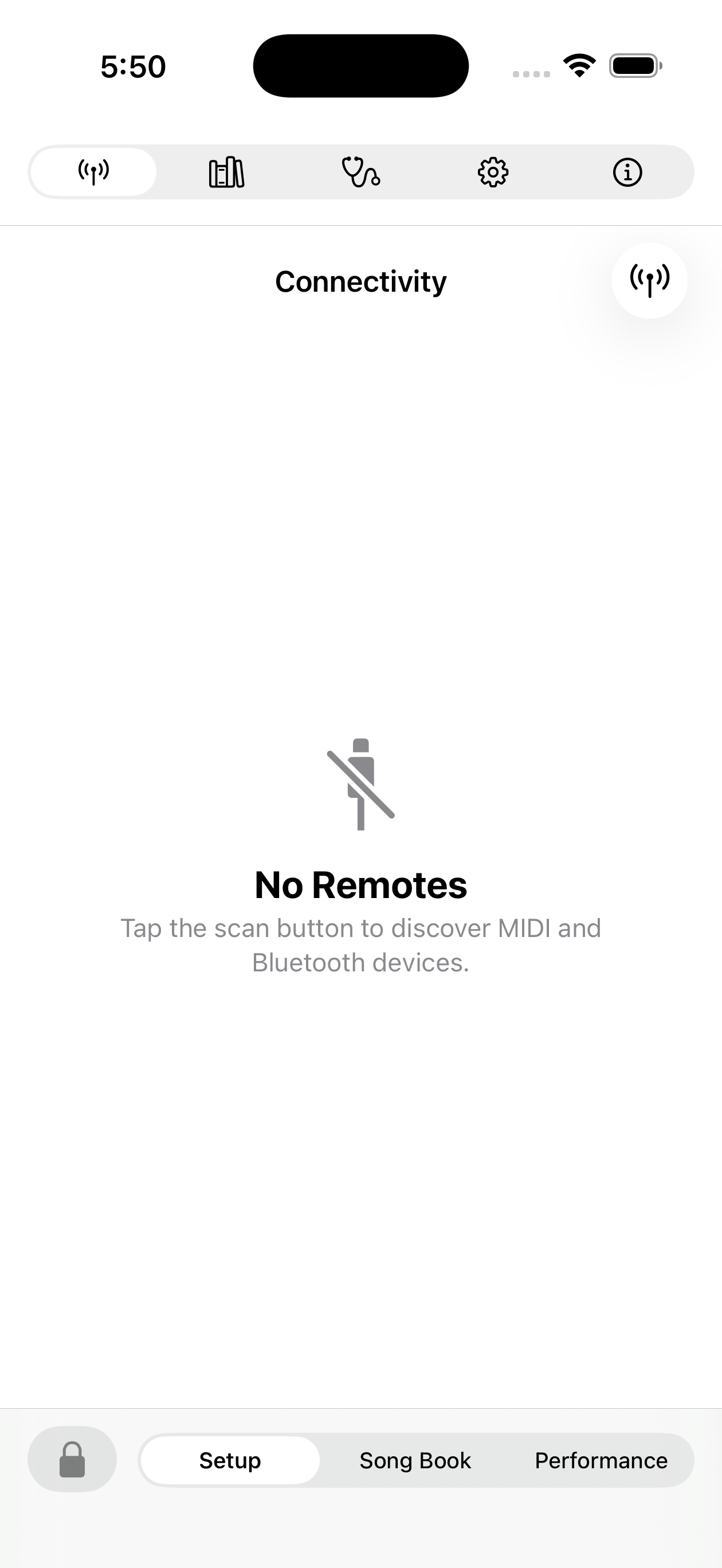
MIDIPerformer has three tabs: Setup (connect gear, hardware profiles, preferences), Song Book (build your songs and set lists), and Performance (go live). The lock icon bottom-left toggles editing — keep it locked during a show so a stray tap can't change a cue.
Connect your gear
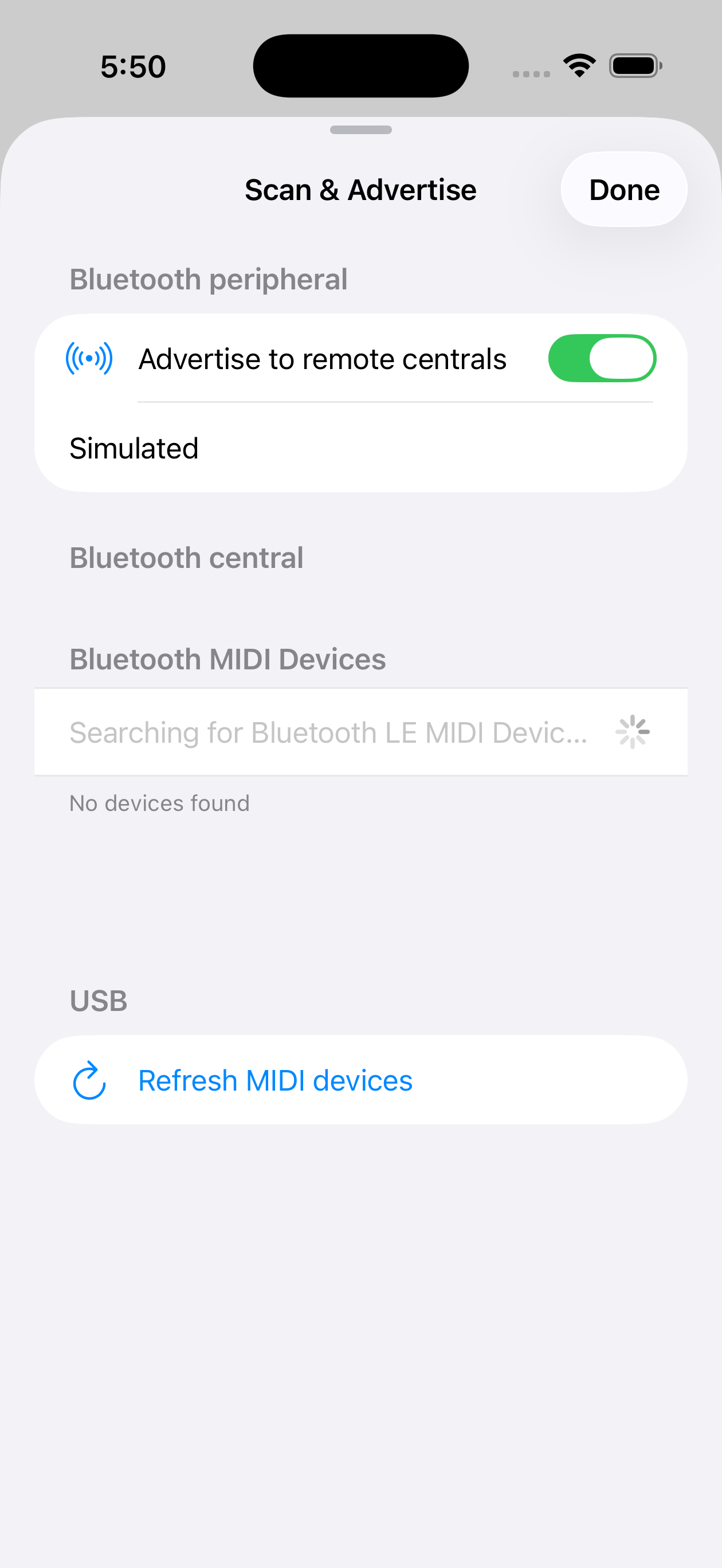
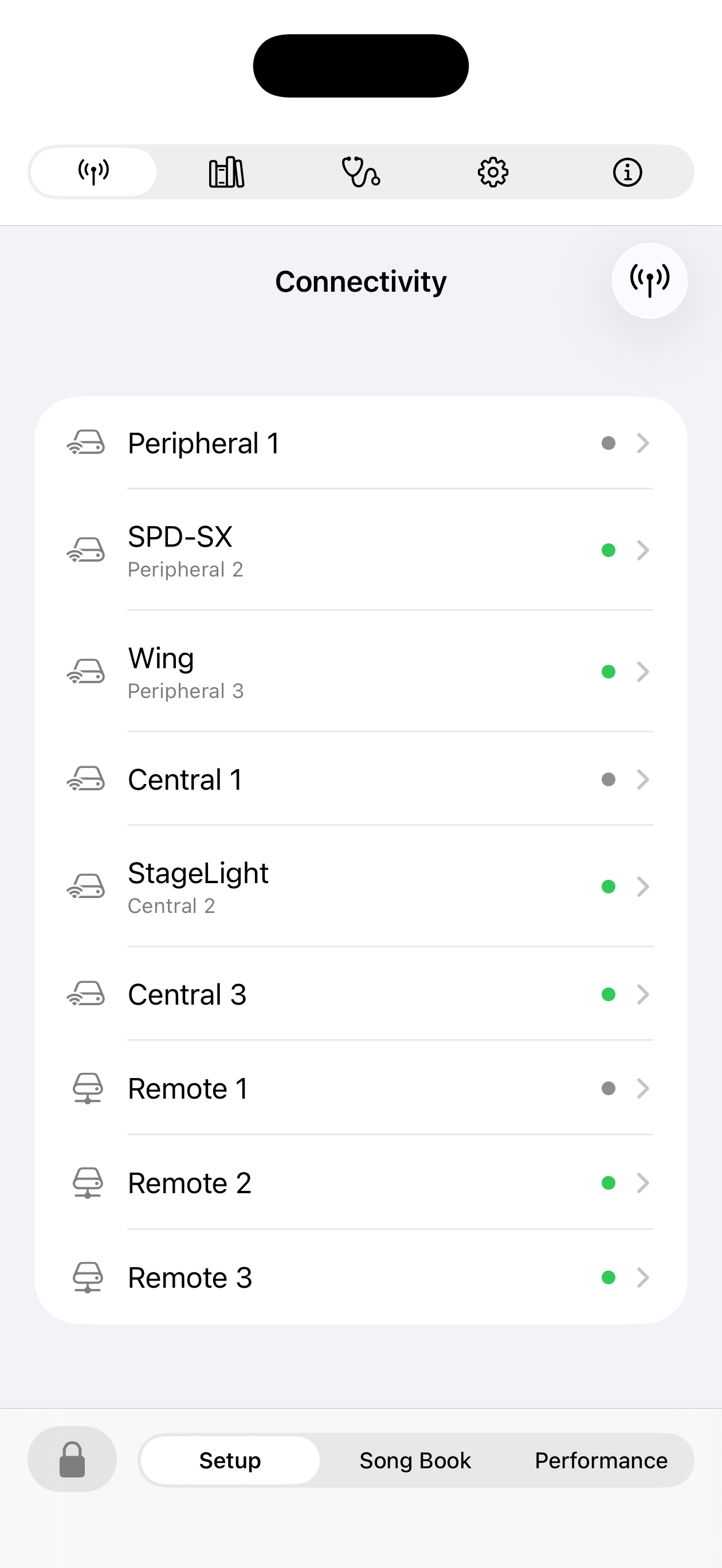
Tap the antenna icon to scan. USB devices show up with a refresh; Bluetooth MIDI devices appear as you scan. If your lighting or sound console needs to connect to the iPad instead, turn on "Advertise to remote centrals" and give the device a name it can find.
Name and configure each device
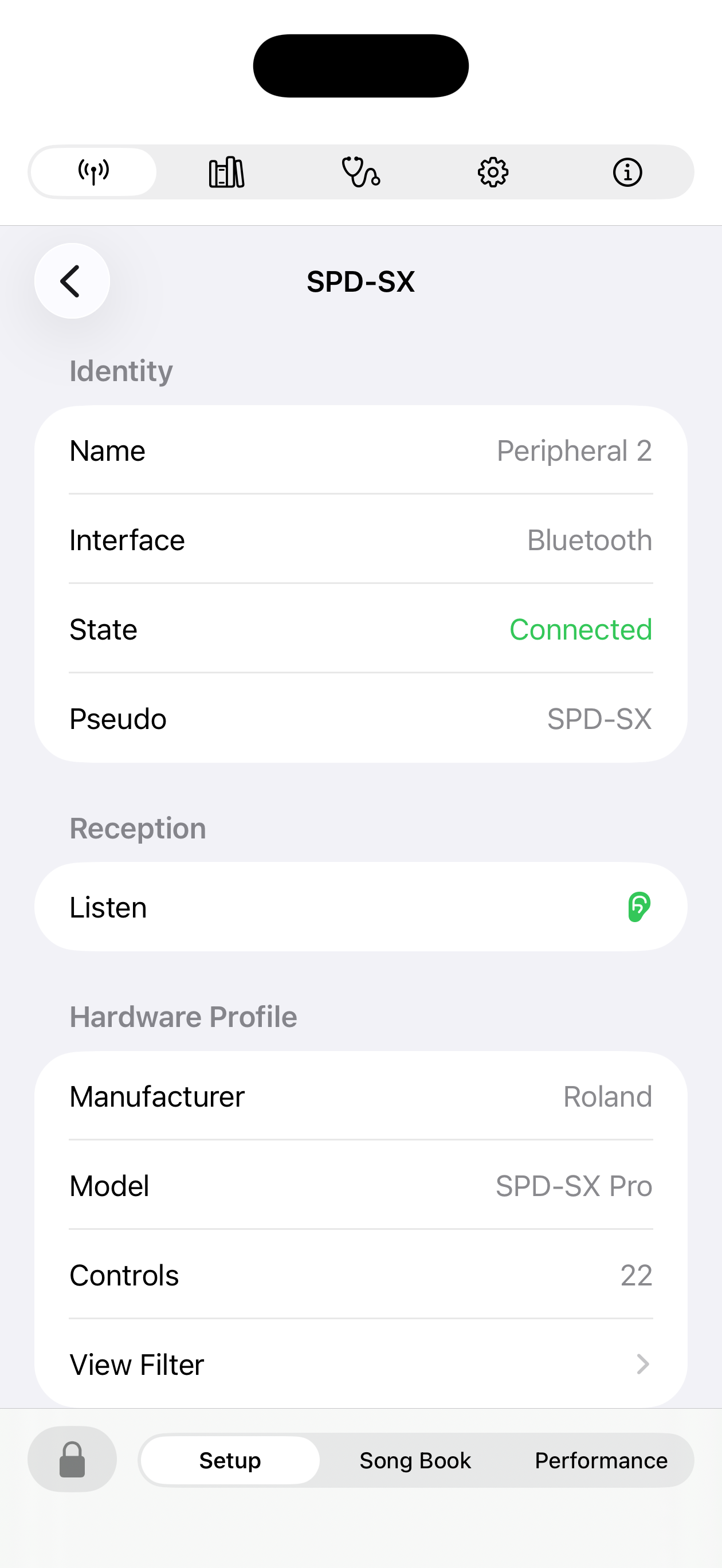
Tap any device to rename it (a "pseudo" like "FoH Console" is easier to read than a serial number), and make sure Listen is on for anything you want MIDIPerformer to receive triggers from. The colored dot shows connection state: green = connected, orange = disconnected, gray = offline.
Match a hardware profile
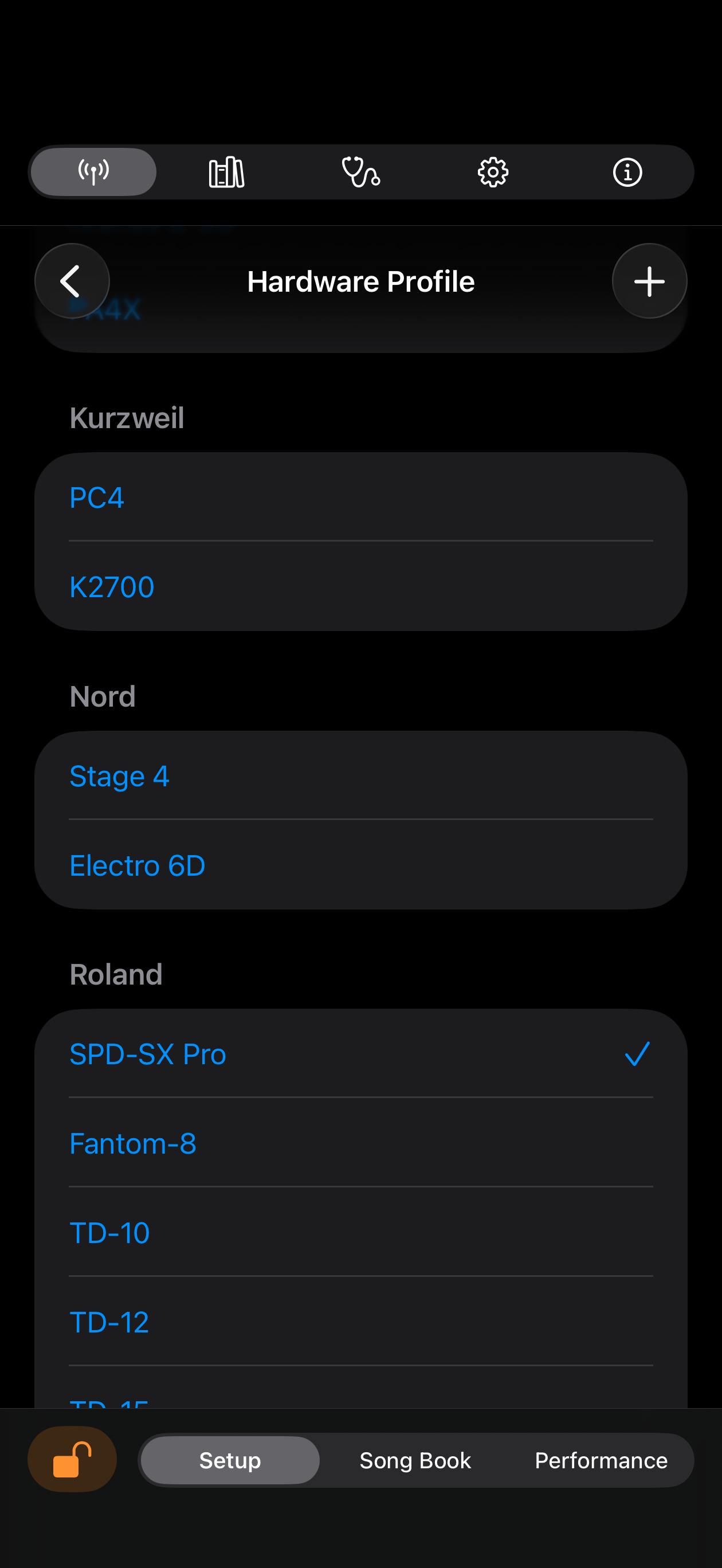
If your gear is in the built-in library, assign its profile. This lets you pick triggers by name later ("Kick", "Pad 3") instead of raw note numbers — and it's what powers automatic wildcard matching during MIDI Learn.
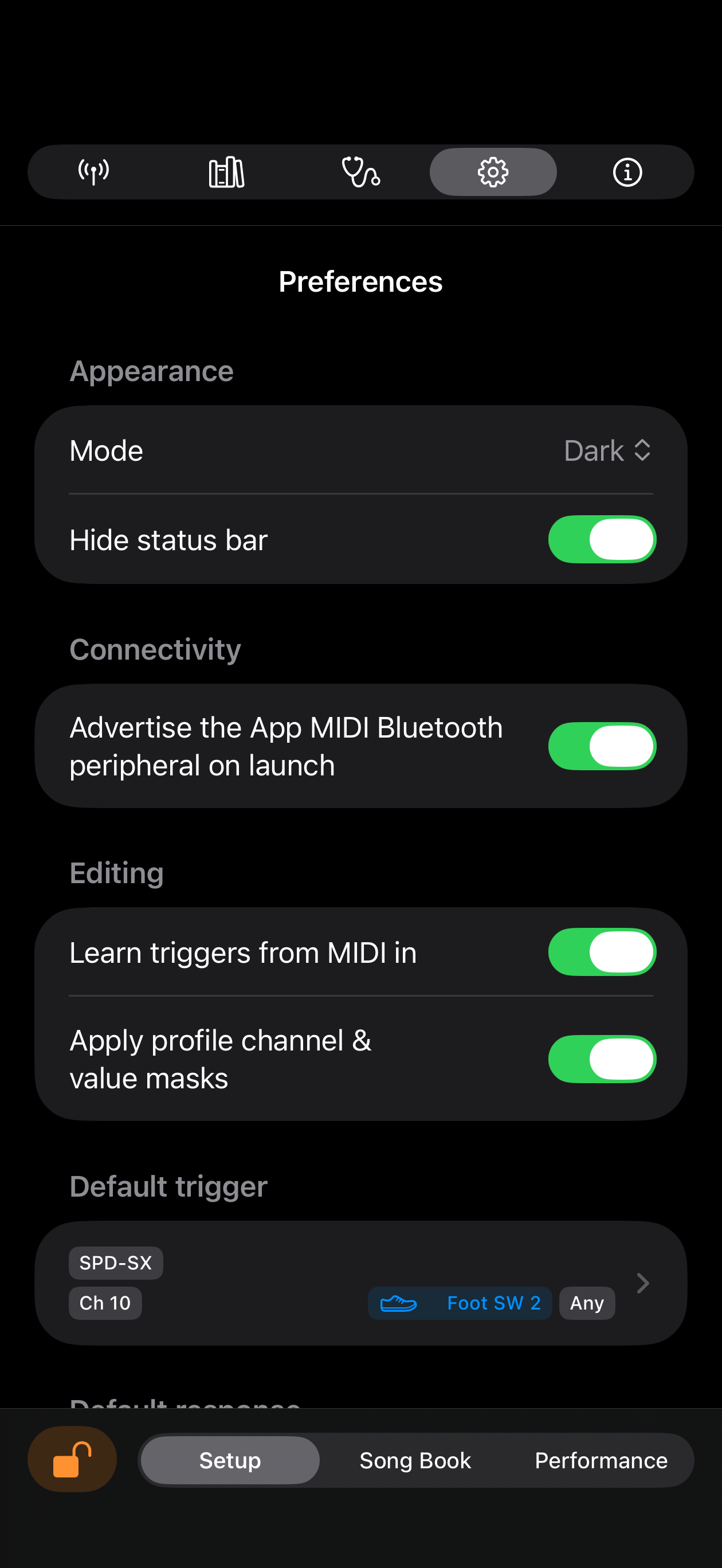
Set App preferences — enable MIDI Learn and default trigger
Turn on MIDI Learn once, in Setup → App. From then on, whenever a trigger field is open, just hit the actual pad or move the actual control on your gear — MIDIPerformer fills in the message for you, and applies smart wildcards automatically when it recognizes a profile control. You may also define a default part trigger in the preferences to accelerate song edition.
Start a Song Book
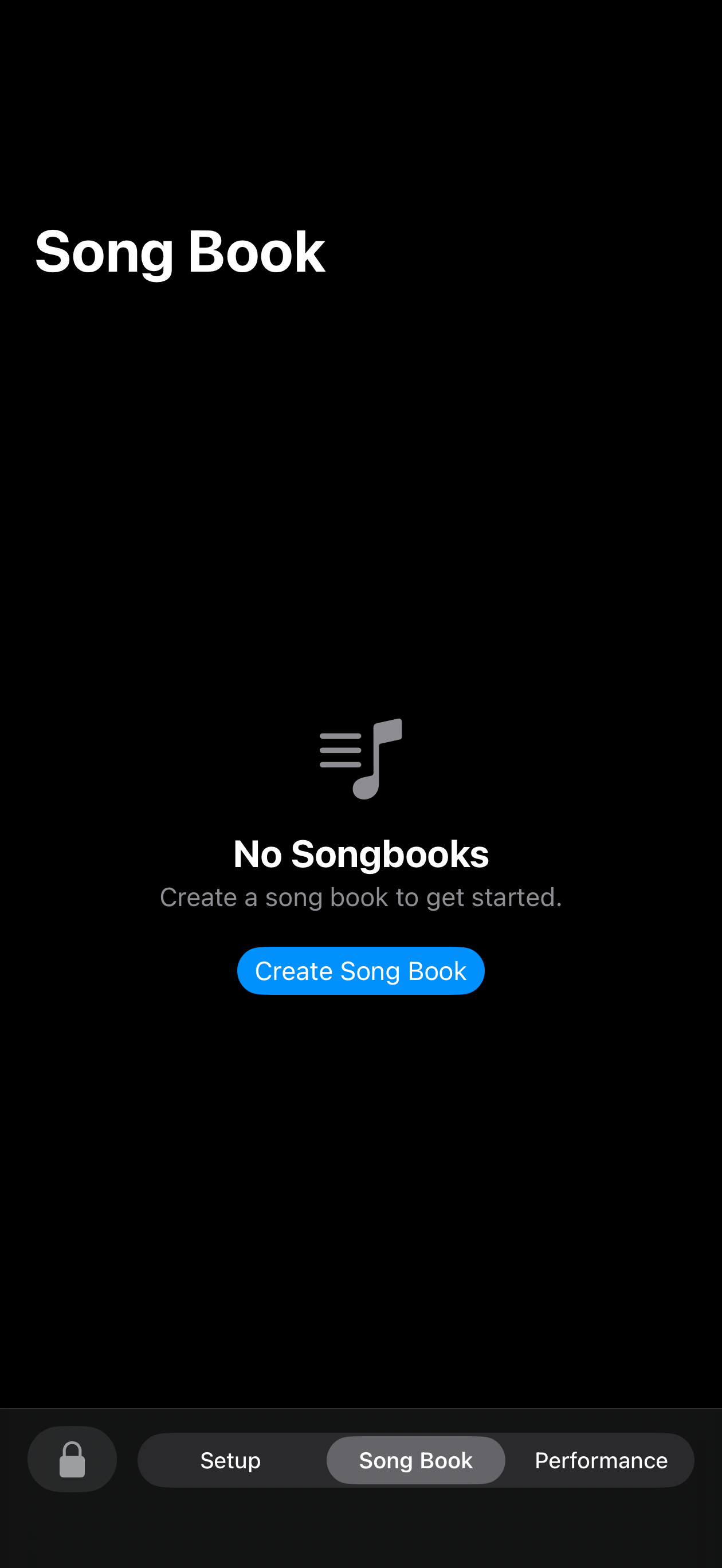
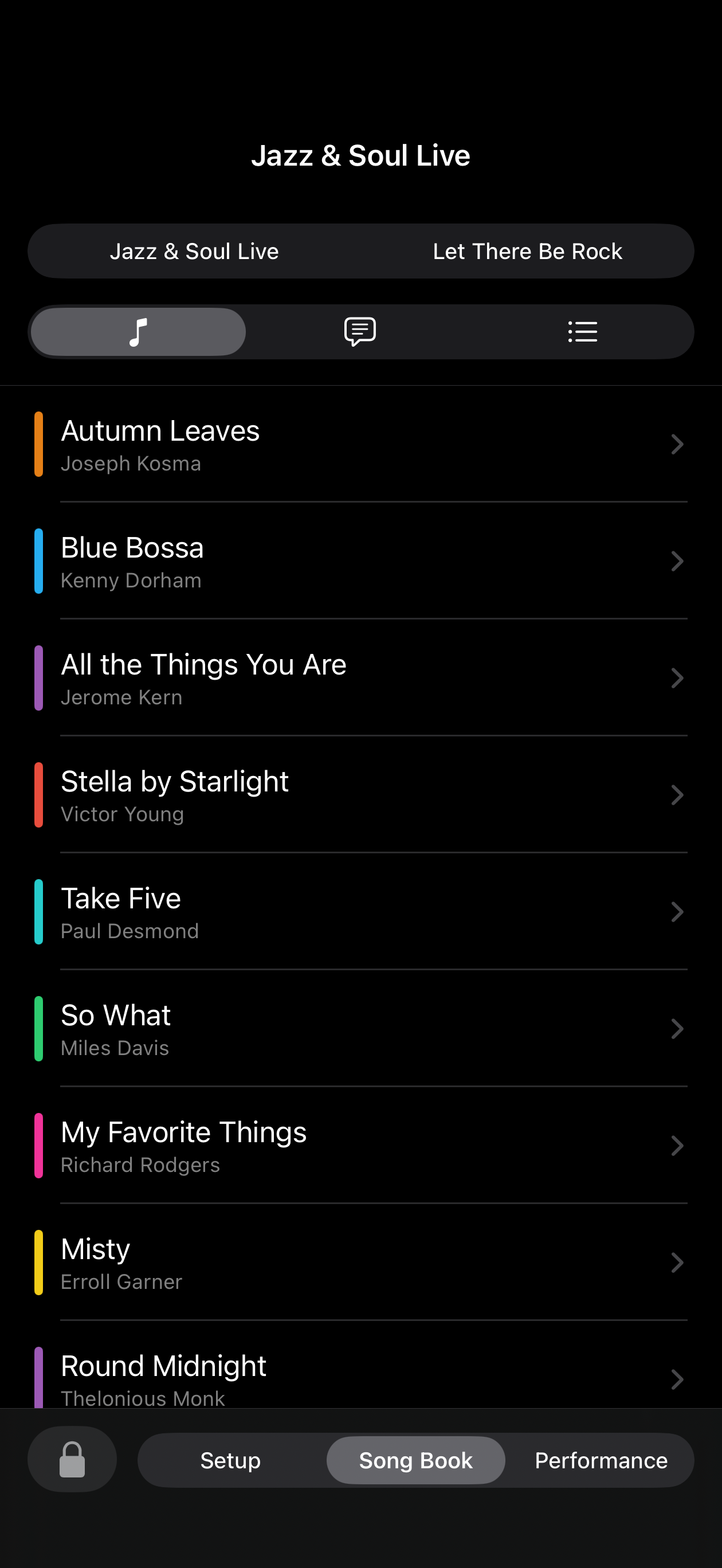
A Song Book holds everything for one show or one set of material — songs, spoken banters, and playlists. Create one per gig, or one per repertoire, whatever fits how you work.
Add a song or banter and its parts
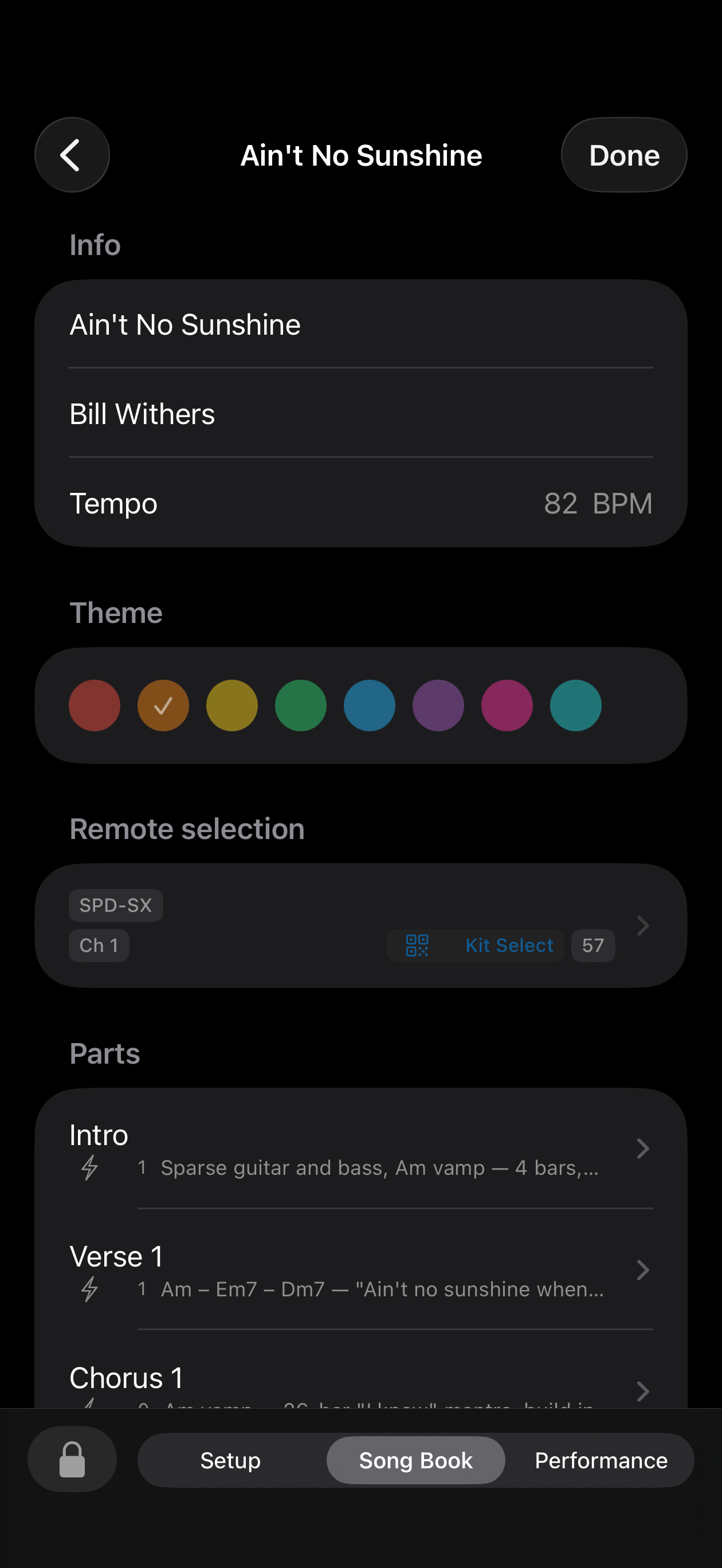
Give the song a title, tempo, and a color — the color is what you'll recognize on stage. Break songs into Parts (intro, verse, chorus…). Each part has an End cue: the big text shown live so you know exactly when to expect the next hit.
Add a response
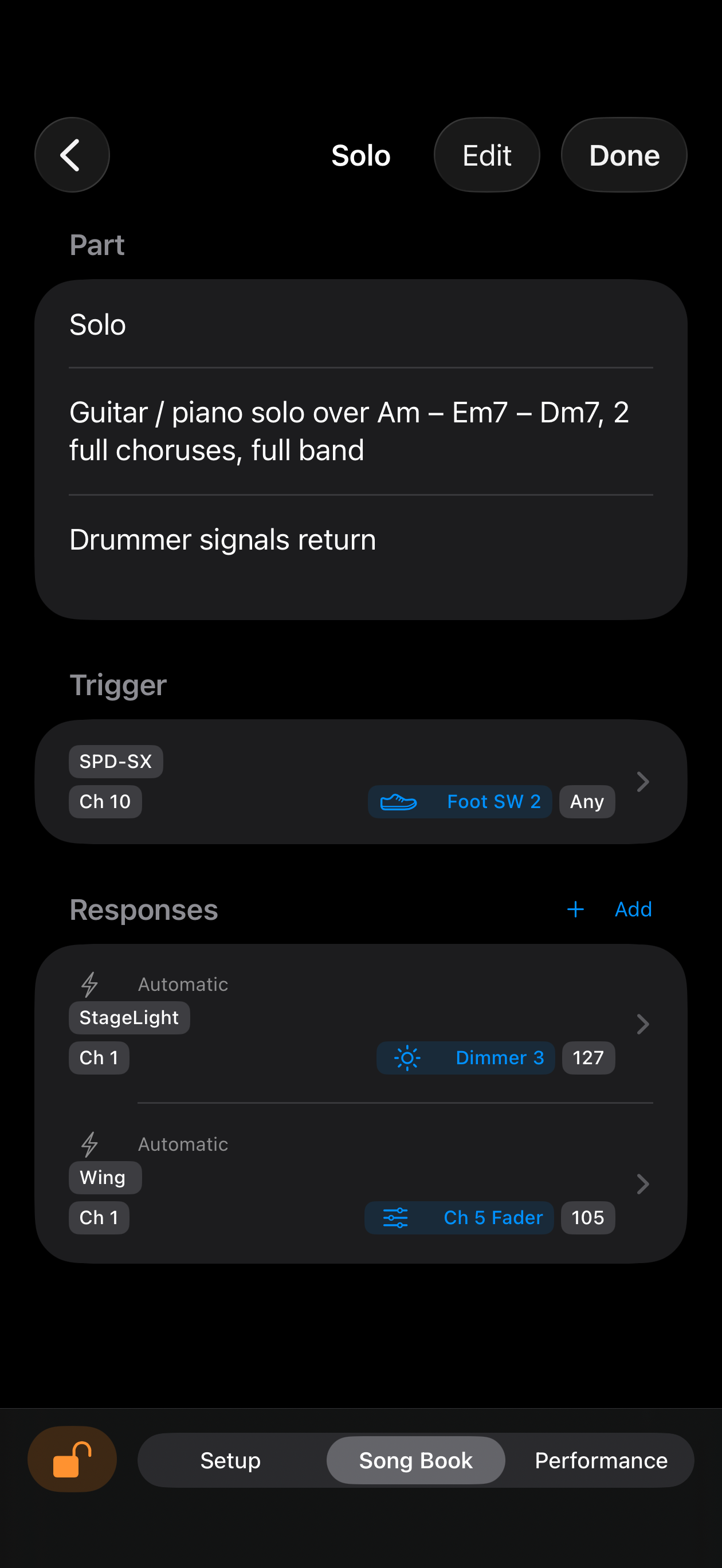
A response is what MIDIPerformer sends out when a part is triggered — typically a scene change on your lighting or sound console. Automatic responses fire the moment the part activates (optionally after a delay, optionally ramping smoothly to a value over time). Manual responses wait for their own separate hit — good for an ad-lib moment you don't want firing automatically.
Build a set list
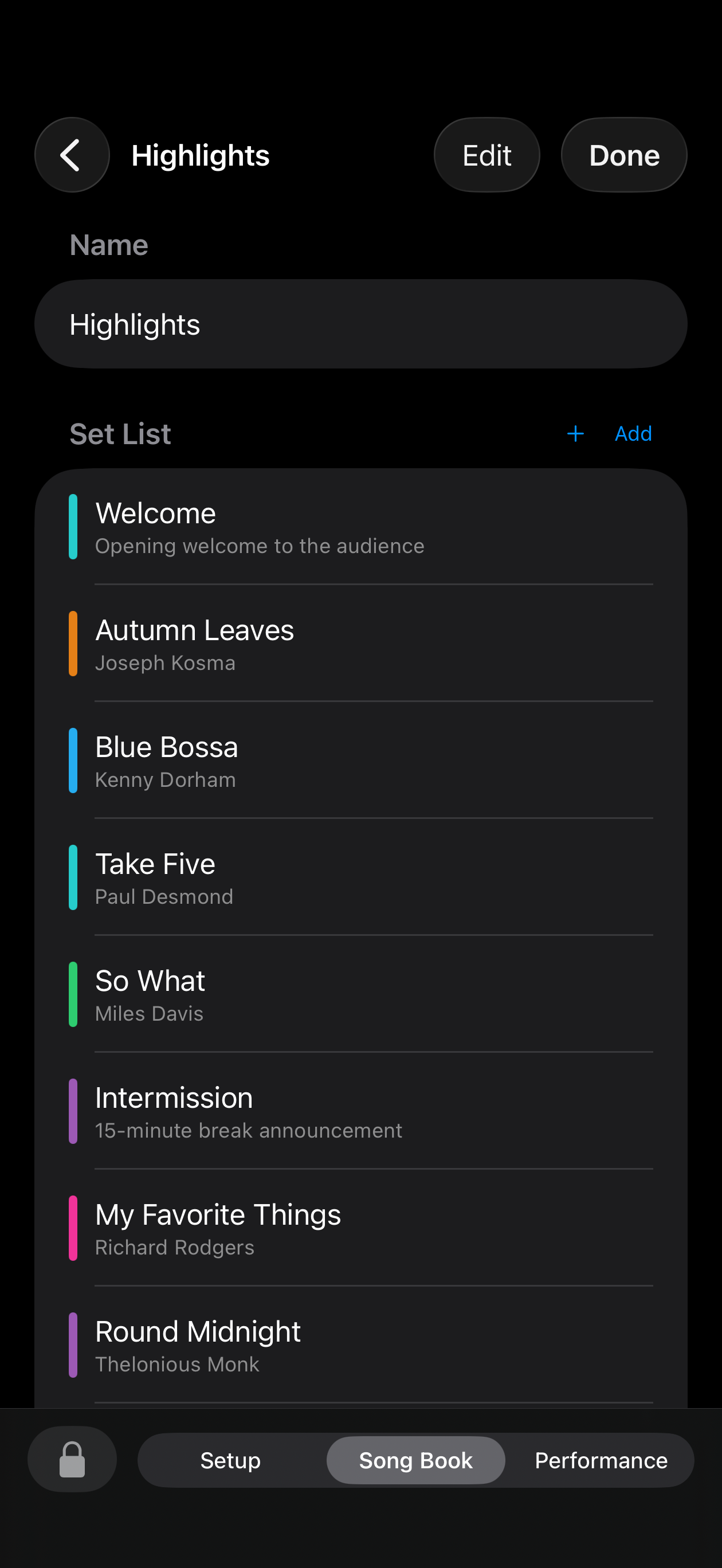
Playlists are your ordered set list for the night — mix songs and banters, drag to reorder. In Performance mode you can play straight through, or jump to any song and resume the list from there.
Test before the gig
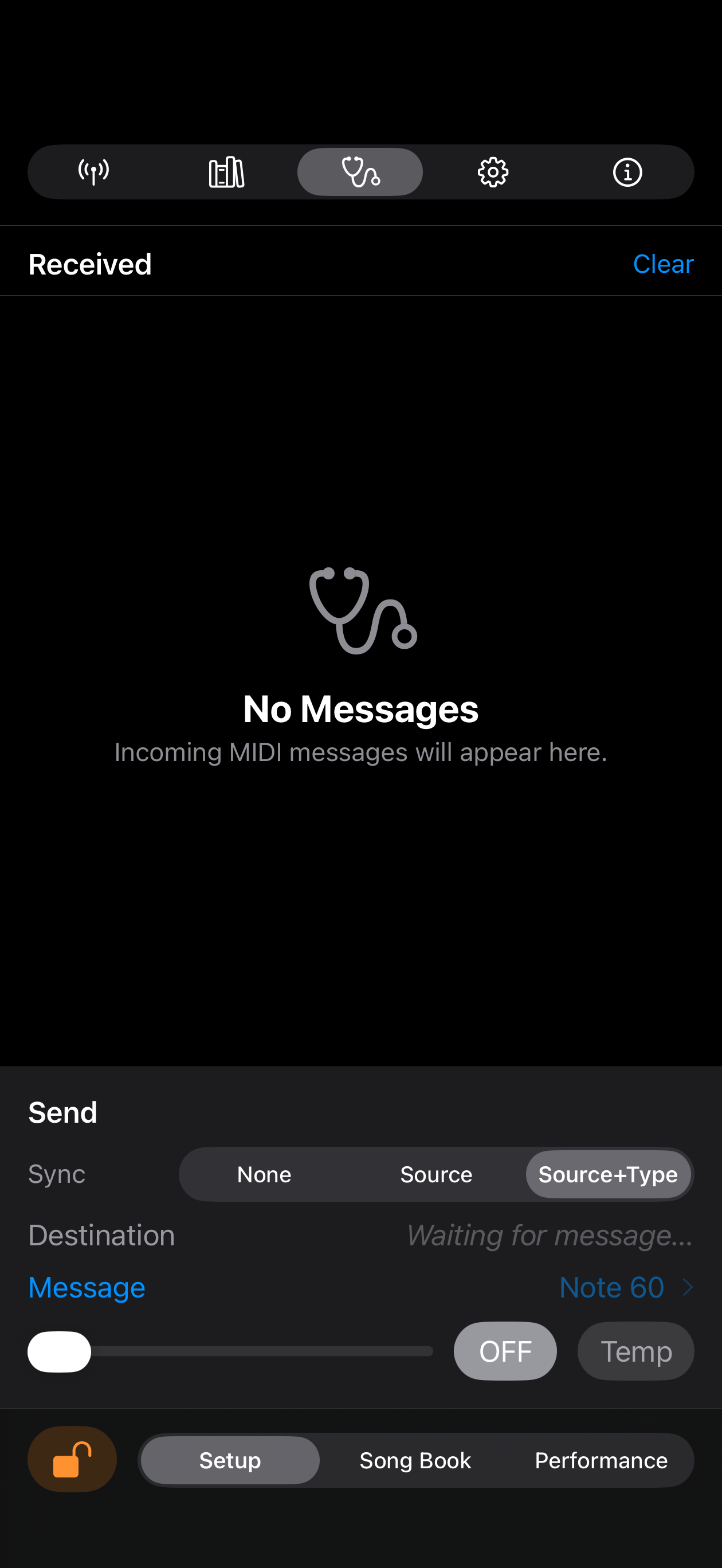
Hit your pads and watch the exact MIDI coming in — confirm it matches what you set as a trigger. Use the Send panel to manually fire test messages to your lighting console and confirm it reacts the way you expect, before anyone's watching.
Go live
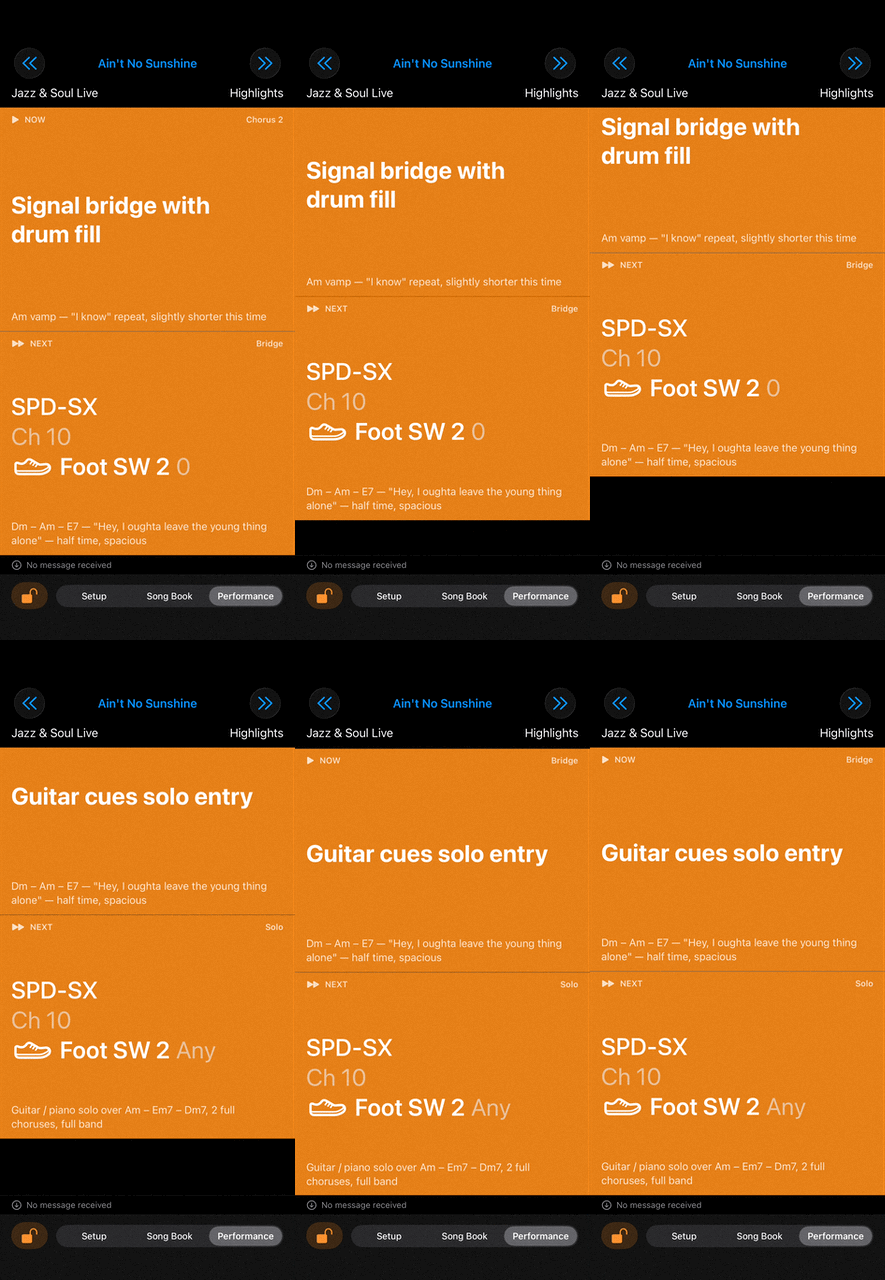
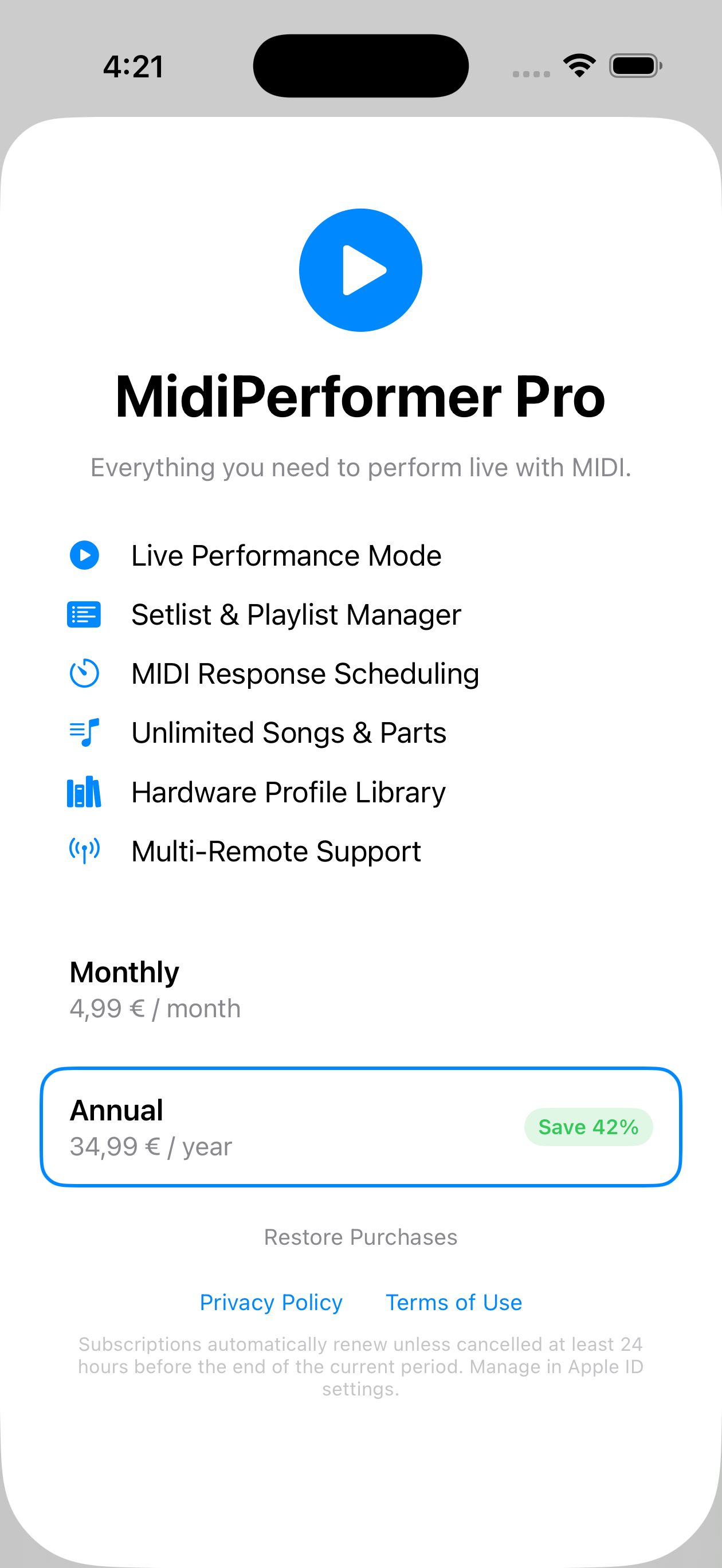
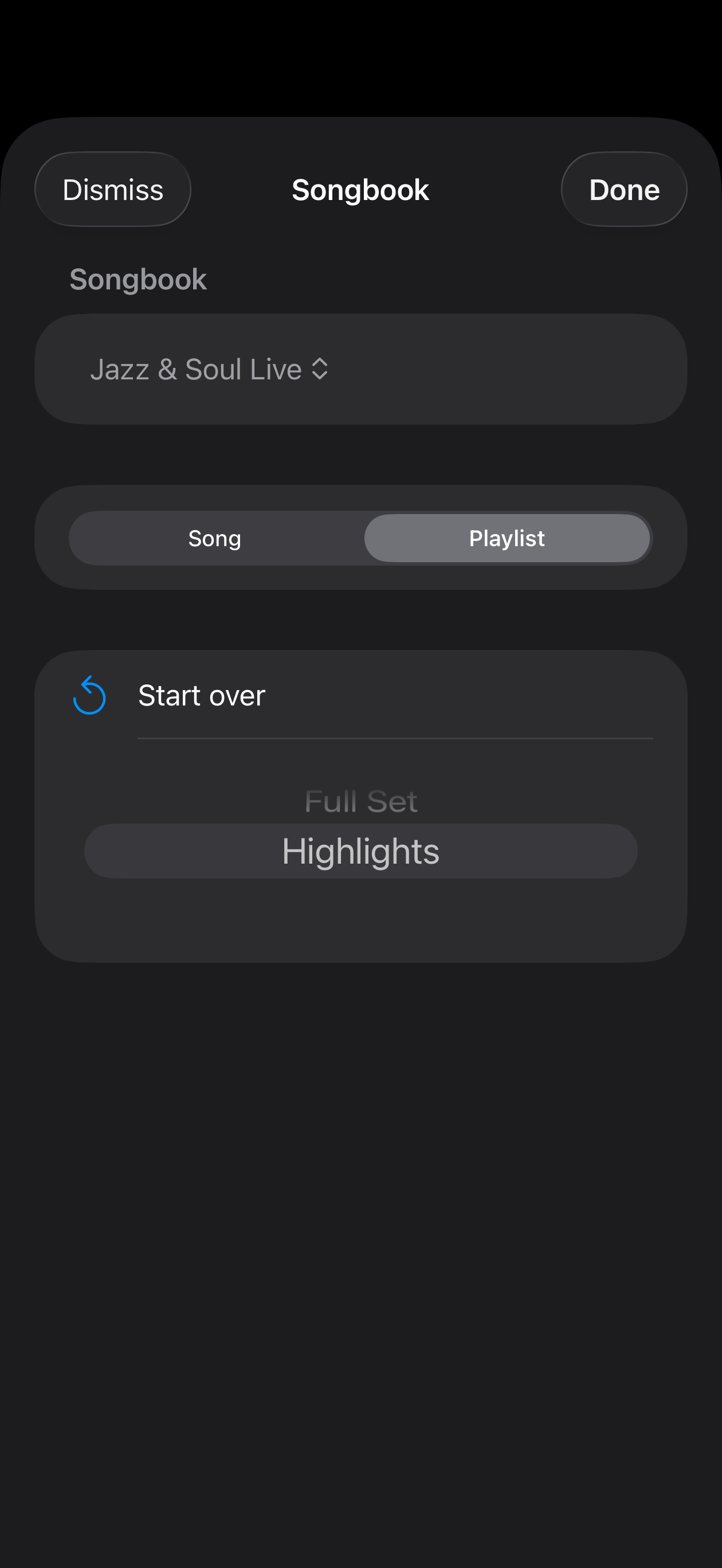
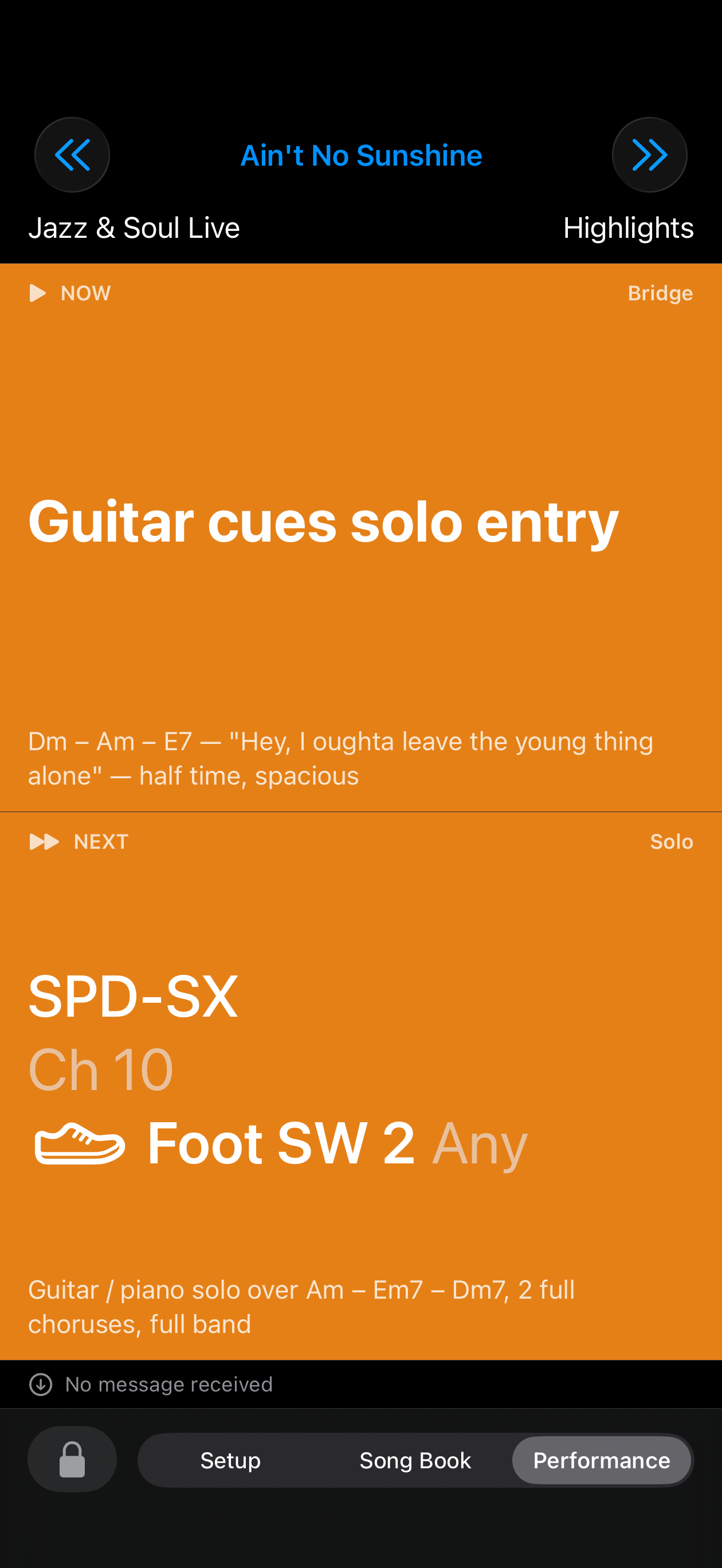
Subscribing to MIDIPerformer Pro allows access to the live performance mode. Tap the title at top, choose your song book and playlist (or a single song), tap Done — three taps and you're ready. The Now panel is your live cue sheet; Next shows exactly what hit is expected to transition to the following part.
Recover from a missed cue
Missed a hit, or the room's noisy Bluetooth dropped a message? Swipe up or down on the panel to manually step the part forward or back, or use the chevrons to jump to the previous/next song. The show doesn't stop for a wrong strike — professionals just create live music.